
em-jones/dynamic-themes-with-codemirror
.agents/skills/dynamic-themes-with-codemirror/SKILL.md
Learn how to create a Lit web component with CodeMirror, dynamically themed using Material Design's color utilities, for a customizable code editing experience.
$ install --global
skillsauthnpx skillsauth add em-jones/staccato-toolkit dynamic-themes-with-codemirrorInstall this skill globally with one command. Works with Claude Code, Cursor, and Windsurf.
Security Scan Results
3 of 9 scanners reported clean
Some scanners were skipped, did not run, or reported a non-clean status. Review each row below.
3
Scanners Passed
9
Scanners in report
Clean
TrivyContainer and dependency vulnerability scanner
95%
Clean
SemgrepStatic code analysis for vulnerabilities
95%
Clean
mcp-scan (Snyk)Model Context Protocol security validation
95%
Skipped
Snyk (dep)Open source security scanning
50%
Skipped
Socket.devSupply chain security analysis
50%
Skipped
VirusTotalMulti-engine malware detection
50%
Skipped
CrowdStrikeAdvanced threat intelligence
50%
Skipped
OSV-ScannerOpen Source Vulnerability database check
50%
Skipped
OWASP Dep-Check
50%
Last scanned: Apr 17, 2026, 1:48 AM14.3s1 file scanned
SKILL.md
- name:
- dynamic-themes-with-codemirror
- description:
- Learn how to create a Lit web component with CodeMirror, dynamically themed using Material Design's color utilities, for a customizable code editing experience.
- url:
- https://rodydavis.com/posts/codemirror-dynamic-theme
- last_modified:
- Tue, 03 Feb 2026 20:04:24 GMT
Dynamic Themes with CodeMirror
In this article I will go over how to set up a Lit web component and use it to create a a code window that uses CodeMirror and apply a dynamic theme with Material Design.
TLDR The final source here and an online demo.
Prerequisites
- Vscode
- Node >= 16
- Typescript
Getting Started
We can start off by navigating in terminal to the location of the project and run the following:
npm init @vitejs/app --template lit-ts
Then enter a project name codemirror-dynamic-theme and now open the project in vscode and install the dependencies:
cd codemirror-dynamic-theme
npm i lit codemirror @material/material-color-utilities
npm i -D @types/node @types/codemirror
code .
Update the vite.config.ts with the following:
import { defineConfig } from "vite";
import { resolve } from "path";

export default defineConfig({
  base: "/codemirror-dynamic-theme/",
  build: {
    rollupOptions: {
      input: {
        main: resolve(__dirname, "index.html"),
      },
    },
  },
});
Template
Open up the index.html and update it with the following:
<!DOCTYPE html>
<html lang="en">
  <head>
    <meta charset="UTF-8" />
    <link rel="icon" type="image/svg+xml" href="/src/favicon.svg" />
    <meta name="viewport" content="width=device-width, initial-scale=1.0" />
    <title>CodeMirror Dynamic Theme</title>
    <script type="module" src="/src/code-window.ts"></script>
    <style>
      body {
        margin: 0;
        padding: 0;
      }
    </style>
  </head>
  <body>
    <code-window> </code-window>
  </body>
</html>
Web Component
Before we update our component we need to rename my-element.ts to code-window.ts
Open up code-window.ts and update it with the following:
import { html, css, LitElement, unsafeCSS } from "lit";
import { customElement, property } from "lit/decorators.js";
import {
  applyTheme,
  argbFromHex,
  hexFromArgb,
  themeFromSourceColor,
} from "@material/material-color-utilities";
import CodeMirror from "codemirror";
import codemirrorStyles from "codemirror/lib/codemirror.css";

@customElement("code-window")
export class CodeWindow extends LitElement {
  static styles = css`
    ${unsafeCSS(codemirrorStyles)}

    main {
      width: 100vw;
      height: 100vh;
      background-color: var(--md-sys-color-background);
      color: var(--md-sys-color-on-background);
      --header-height: 48px;
      --input-size: 32px;
    }

    .toolbar {
      height: var(--header-height);
      background-color: var(--md-sys-color-primary-container);
      color: var(--md-sys-color-on-primary-container);
      display: flex;
      align-items: center;
    }

    .actions > * {
      margin-left: 4px;
      margin-right: 4px;
    }

    .toolbar .title {
      font-family: sans-serif;
      font-size: 18px;
      padding-left: 4px;
    }

    .toolbar .actions {
      display: flex;
      align-items: center;
    }

    .toolbar a {
      padding: 0;
      margin: 0;
      padding-left: 8px;
      padding-right: 8px;
      display: flex;
      align-items: center;
      cursor: pointer;
    }

    input[type="color"] {
      width: calc(var(--input-size) * 2);
      height: var(--input-size);
      outline: none;
      border: none;
      border-radius: 50%;
      background-color: var(--md-sys-color-primary-container);
    }
    input[type="color"]::-webkit-color-swatch-wrapper {
      padding: 0;
    }
    input[type="color"]::-webkit-color-swatch {
      border: none;
      border-radius: var(--input-size);
      border: var(--md-sys-color-outline) solid 1px;
    }

    button {
      border: none;
      border-radius: 4px;
      padding: 8px;
    }

    .tertiary {
      background-color: var(--md-sys-color-tertiary);
      color: var(--md-sys-color-on-tertiary);
    }

    .secondary {
      background-color: var(--md-sys-color-secondary);
      color: var(--md-sys-color-on-secondary);
    }

    .spacer {
      flex: 1;
    }

    .editor {
      height: calc(100% - var(--header-height));
      width: 100%;
    }
  `;

  @property() value = [
    `import {html, css, LitElement} from 'lit';`,
    `import {customElement, property} from 'lit/decorators.js';`,
    ``,
    `@customElement('simple-greeting')`,
    `export class SimpleGreeting extends LitElement {`,
    `  static styles = css\`p { color: blue }\`;`,
    ``,
    `  @property()`,
    `  name = 'Somebody';`,
    ``,
    `  render() {`,
    `    return html\`<p>Hello, \${this.name}!</p>\`;`,
    `  }`,
    `}`,
  ].join("\n");

  @property() color = "#6750A4";
  @property({ type: Boolean }) dark = window.matchMedia(
    "(prefers-color-scheme: dark)"
  ).matches;

  render() {
    return html`<main>
      <header class="toolbar">
        <div class="title">${document.title}</div>
        <div class="spacer"></div>
        <div class="actions">
          <button class="secondary" @click=${this.toggleDark.bind(this)}>
            ${this.dark ? "Light" : "Dark"}
          </button>
          <button class="tertiary" @click=${this.randomColor.bind(this)}>
            Random
          </button>
          <input
            type="color"
            .value=${this.color}
            @input=${this.onColor.bind(this)}
          />
        </div>
      </header>
      <div class="editor"></div>
    </main>`;
  }

  firstUpdated() {
    const root = this.shadowRoot!.querySelector(".editor") as HTMLElement;
    const editor = CodeMirror(root, {
      value: this.value,
      mode: "javascript",
      lineNumbers: true,
      lineWrapping: true,
      indentUnit: 4,
      tabSize: 4,
      indentWithTabs: true,
      autofocus: true,
    });
    console.debug(editor);
    editor.setSize("100%", `100%`);
    this.updateTheme();
    window
      .matchMedia("(prefers-color-scheme: dark)")
      .addEventListener("change", (e) => {
        this.dark = e.matches;
        this.updateTheme();
      });
  }

  private updateTheme() {
   // TODO: Generate Theme
  }

  private setColor(val: string) {
    this.color = val;
    this.updateTheme();
  }

  private onColor(e: Event) {
    const target = e.target as HTMLInputElement;
    this.setColor(target.value);
  }

  private randomColor() {
    const letters = "0123456789ABCDEF";
    let color = "#";
    for (let i = 0; i < 6; i++) {
      color += letters[Math.floor(Math.random() * 16)];
    }
    this.setColor(color);
  }

  private toggleDark() {
    this.dark = !this.dark;
    this.updateTheme();
  }

}

declare global {
  interface HTMLElementTagNameMap {
    "code-window": CodeWindow;
  }
}
Here we are setting up some of the editor basics to load in the styles needed for the basic layout.
There are also few methods that handle updating of properties on the element such as toggleDark and setColor. When you run the application you should see the following:
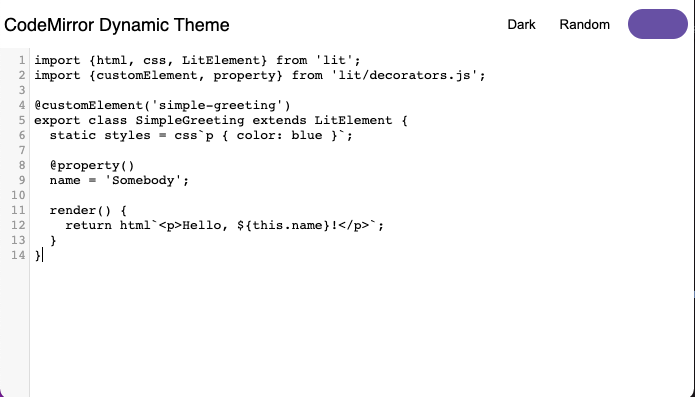
It doesn't look great yet, but now we can add a CodeMirror theme to import. Create a file src/theme.ts and update it with the following:
import { css } from "lit";

export const codeMirrorTheme = css`
  .CodeMirror {
    background-color: var(--md-sys-color-background);
    color: var(--md-sys-color-on-background);
  }

  .CodeMirror-gutters {
    background: var(--md-sys-color-surface-variant);
    color: var(--md-sys-color-on-surface-variant);
    border: none;
  }

  .CodeMirror-guttermarker,
  .CodeMirror-guttermarker-subtle,
  .CodeMirror-linenumber {
    color: var(--md-sys-color-on-background);
  }

  .CodeMirror-cursor {
    border-left: 1px solid var(--md-sys-color-primary);
  }
  .cm-fat-cursor .CodeMirror-cursor {
    background-color: var(--md-sys-color-background);
  }
  .cm-animate-fat-cursor {
    background-color: var(--md-sys-color-background);
  }

  div.CodeMirror-selected {
    background: var(--md-sys-color-surface-variant);
  }

  .CodeMirror-focused div.CodeMirror-selected {
    background: var(--md-sys-color-surface-variant);
  }

  .CodeMirror-line::selection,
  .CodeMirror-line > span::selection,
  .CodeMirror-line > span > span::selection {
    background: var(--md-sys-color-surface-variant);
  }

  .CodeMirror-line::-moz-selection,
  .CodeMirror-line > span::-moz-selection,
  .CodeMirror-line > span > span::-moz-selection {
    background: var(--md-sys-color-surface-variant);
  }

  .CodeMirror-activeline-background {
    background: var(--md-sys-color-surface);
  }

  .cm-keyword {
    color: var(--md-custom-color-keyword) !important;
  }

  .cm-operator {
    color: var(--md-custom-color-operator) !important;
  }

  .cm-variable-2 {
    color: var(--md-custom-color-variable-2) !important;
  }

  .cm-variable-3,
  .cm-type {
    color: var(--md-custom-color-variable-3) !important;
  }

  .cm-builtin {
    color: var(--md-custom-color-builtin) !important;
  }

  .cm-atom {
    color: var(--md-custom-color-atom) !important;
  }

  .cm-number {
    color: var(--md-custom-color-number) !important;
  }

  .cm-def {
    color: var(--md-custom-color-def) !important;
  }

  .cm-string {
    color: var(--md-custom-color-string) !important;
  }

  .cm-string-2 {
    color: var(--md-custom-color-string-2) !important;
  }

  .cm-comment {
    color: var(--md-custom-color-comment) !important;
  }

  .cm-variable {
    color: var(--md-custom-color-variable) !important;
  }

  .cm-tag {
    color: var(--md-custom-color-tag) !important;
  }

  .cm-meta {
    color: var(--md-custom-color-meta) !important;
  }

  .cm-attribute {
    color: var(--md-custom-color-attribute) !important;
  }

  .cm-property {
    color: var(--md-custom-color-property) !important;
  }

  .cm-qualifier {
    color: var(--md-custom-color-qualifier) !important;
  }

  .cm-variable-3,
  .cm-type {
    color: var(--md-custom-color-variable-3) !important;
  }

  .cm-error {
    color: var(--md-sys-color-on-error);
    background-color: var(--md-sys-color-error);
  }

  .CodeMirror-matchingbracket {
    text-decoration: underline;
    color: var(--md-sys-color-on-surface);
  }
`;
Here we are defining all the styles as CSS Custom Properties so we can easily update them.
Now import the theme and apply the styles in the component:
import { codeMirrorTheme } from "./theme";

@customElement("code-window")
export class CodeWindow extends LitElement {
  static styles = css`
    ${unsafeCSS(codemirrorStyles)}
    ${codeMirrorTheme}
    ...
Now we need to implement the updateTheme method in our element:
updateTheme() {
    const source = this.color;
    const dark = this.dark;
    const target = this.shadowRoot!.querySelector("main") as HTMLElement;
    const properties = [
        `--md-custom-color-keyword: #c75779;`,
        `--md-custom-color-operator: #008800;`,
        `--md-custom-color-variable: #90ccff;`,
        `--md-custom-color-variable-2: #dd7700;`,
        `--md-custom-color-variable-3: #3333bb;`,
        `--md-custom-color-variable-3: #decb6b;`,
        `--md-custom-color-builtin: #003388;`,
        `--md-custom-color-atom: #bb4646;`,
        `--md-custom-color-number: #b4c5ff;`,
        `--md-custom-color-def: #82aaff;`,
        `--md-custom-color-string: #ffb4a9;`,
        `--md-custom-color-string-2: #ffb4a9;`,
        `--md-custom-color-comment: #888888;`,
        `--md-custom-color-tag: #000080;`,
        `--md-custom-color-meta: #a9c7ff;`,
        `--md-custom-color-attribute: #008080;`,
        `--md-custom-color-property: #336699;`,
        `--md-custom-color-qualifier: #690;`,
    ];
    const customColors = properties.map((property) => {
        const [key, value] = property.split(":");
        const name = key.trim().replace(/^--md-custom-color-/, "");
        const color = argbFromHex(value.trim().replace(";", ""));
        return {
        name,
        value: color,
        blend: true,
        };
    });
    const theme = themeFromSourceColor(argbFromHex(source), customColors);
    applyTheme(theme, { target, dark });
    for (const custom of theme.customColors) {
        const name = custom.color.name;
        const section = dark ? custom.dark : custom.light;
        target.style.setProperty(
        `--md-custom-color-${name}`,
        hexFromArgb(section.color)
        );
    }
}
Here we are using the Material Color Utilities package and generating a theme from a source color. We can take advantage of Custom Colors to blend the values to the theme.
After the theme is generated we can apply them to the root element and have the custom properties update the editor.

Changing the source color can update the theme:
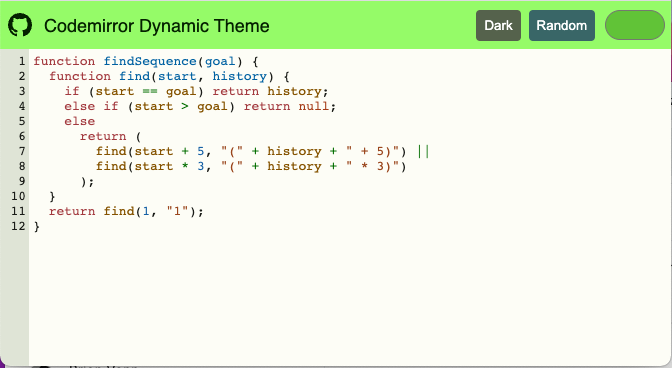
Changing the brightness can set the colors as well:
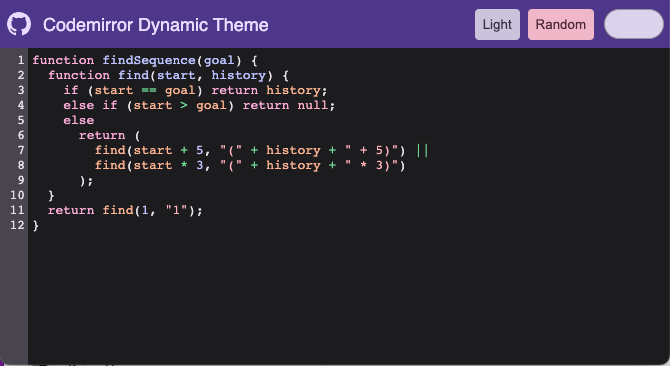
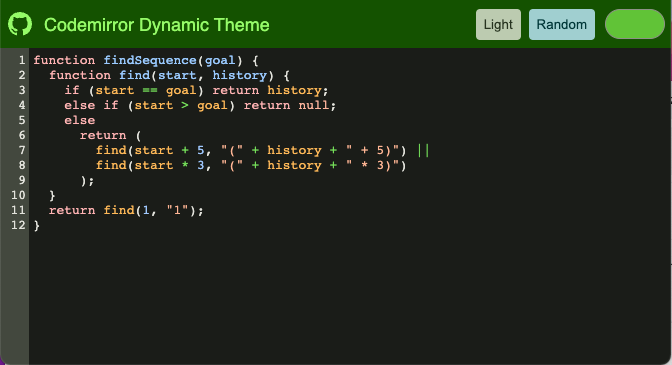
Conclusion
If you want to learn more about building with Lit you can read the docs here.
The source for this example can be found here.
If you want to check out dynamic themes for VSCode I created an extension here.
Related Skills
em-jones/.agents/skills/vite-plus
tools
VerifiedTrustedCommunity
<!--VITE PLUS START--> # Using Vite+, the Unified Toolchain for the Web This project is using Vite+, a unified toolchain built on top of Vite, Rolldown, Vitest, tsdown, Oxlint, Oxfmt, and Vite Task. Vite+ wraps runtime management, package management, and frontend tooling in a single global CLI called `vp`. Vite+ is distinct from Vite, but it invokes Vite through `vp dev` and `vp build`. ## Vite+ Workflow `vp` is a global binary that handles the full development lifecycle. Run `vp help` to pr
1SKILL.mdUpdated Apr 17, 2026
em-jones/ui-data-tables
development
VerifiedTrustedCommunity
Guide for building performant data tables. Uses tanstack-table for table logic (sorting, filtering, pagination) and tanstack-virtual for rendering large datasets efficiently.
1SKILL.mdUpdated Apr 17, 2026
em-jones/typescript-effect-library
development
VerifiedTrustedCommunity
Expert guidance for building observable, expressive, and fault-tolerant TypeScript applications using the effect-ts/effect ecosystem. Covers Effect<A, E, R> type, error management, dependency injection via Layers, observability (logging, metrics, tracing), concurrency with Fibers, retry/scheduling, Schema validation, Streams, and Sinks.
1SKILL.mdUpdated Apr 17, 2026
em-jones/typescript-e2e-testing
tools
VerifiedTrustedCommunity
Complete E2E (end-to-end) and integration testing skill for TypeScript/NestJS projects using Jest, real infrastructure via Docker, and GWT pattern. ALWAYS use this skill when user needs to: **SETUP** - Initialize or configure E2E testing infrastructure: - Set up E2E testing for a new project - Configure docker-compose for testing (Kafka, PostgreSQL, MongoDB, Redis) - Create jest-e2e.config.ts or E2E Jest configuration - Set up test helpers for database, Kafka, or Redis - Configure .env.e2e environment variables - Create test/e2e directory structure **WRITE** - Create or add E2E/integration tests: - Write, create, add, or generate e2e tests or integration tests - Test API endpoints, workflows, or complete features end-to-end - Test with real databases, message brokers, or external services - Test Kafka consumers/producers, event-driven workflows - Working on any file ending in .e2e-spec.ts or in test/e2e/ directory - Use GWT (Given-When-Then) pattern for tests **REVIEW** - Audit or evaluate E2E tests: - Review existing E2E tests for quality - Check test isolation and cleanup patterns - Audit GWT pattern compliance - Evaluate assertion quality and specificity - Check for anti-patterns (multiple WHEN actions, conditional assertions) **RUN** - Execute or analyze E2E test results: - Run E2E tests - Start/stop Docker infrastructure for testing - Analyze E2E test results - Verify Docker services are healthy - Interpret test output and failures **DEBUG** - Fix failing or flaky E2E tests: - Fix failing E2E tests - Debug flaky tests or test isolation issues - Troubleshoot connection errors (database, Kafka, Redis) - Fix timeout issues or async operation failures - Diagnose race conditions or state leakage - Debug Kafka message consumption issues **OPTIMIZE** - Improve E2E test performance: - Speed up slow E2E tests - Optimize Docker infrastructure startup - Replace fixed waits with smart polling - Reduce beforeEach cleanup time - Improve test parallelization where safe Keywords: e2e, end-to-end, integration test, e2e-spec.ts, test/e2e, Jest, supertest, NestJS, Kafka, Redpanda, PostgreSQL, MongoDB, Redis, docker-compose, GWT pattern, Given-When-Then, real infrastructure, test isolation, flaky test, MSW, nock, waitForMessages, fix e2e, debug e2e, run e2e, review e2e, optimize e2e, setup e2e
1SKILL.mdUpdated Apr 17, 2026